Nobody asks 'fries with that?' when the queue is long
GetMenu adds restaurant menu upselling to your online ordering page, so the menu asks for you. You set the offers once: a drink at a special price with a burger, a combo upgrade, a bundle or a treat over a cart amount. The menu then offers them by itself, in the dish window and the cart.
Why restaurant orders stay small when nobody suggests extras
Many restaurants miss easy extra sales because nobody has time to suggest them. A customer orders a burger, and nobody asks if they would like fries or a cold drink with it.
When orders come in by WhatsApp or by phone, the person replying is busy writing down the order and the address. At the counter, the queue is long and the cashier wants to serve the next customer. So the question "Would you like fries with that?" is skipped, order after order.
Each skipped question means a smaller order. The customer might have said yes to a drink, a dessert or a meal deal, but nobody offered one. Over a month, those missed extras add up, and no report ever shows you the sales that did not happen.
In the dish window
How to upsell drinks and sides on your online menu
GetMenu's restaurant menu software shows your drink and side offers inside the dish window, under the heading "Goes great with". A customer who opens a burger sees fries or a cold drink there, at the offer price you set, or free.
You choose which dishes start each offer. A pairing can start from a few chosen dishes, such as your burgers, or from a whole category, such as all your mains. The customer taps the offer to pick it. It then goes into the cart together with the dish when they tap Add.
If they close the window without adding the dish, the offer is not added either, so nobody ends up with a cheap drink and no burger. You also set a limit per order for each offer, so a deal meant for one drink cannot be taken ten times. A dish marked sold out is never offered.
Note under itAdded together with Chicken burger when you tap Add
LimitMax per order, set by you
Combos
Combo meal deals: combo upgrades, a second one cheaper and buy X get Y
GetMenu can turn one dish into a meal deal while the customer is choosing. With a combo upgrade, a customer who opens a burger is offered your burger meal at a fixed combo price. Leave the combo empty, and a second burger is offered at a set price instead.
Three more kinds of offer appear in the cart, under "Deals for you":
A second one cheaper With one shawarma in the cart, the next one is offered at a percentage off. The discount is taken from the dish's current menu price, so when you change the price, the deal changes with it.
Buy X get Y Buy at least the number you choose of one dish, and get another dish free or at a special price.
An add-on shelf A row of small items, such as a cookie or a dip, each at one add-on price.
The rule behind each deal A combo, a second one or a buy X get Y reward needs the dish it comes with. If the customer removes that dish, the deal cannot be ordered.
Bundles
Meal bundles for restaurants: any 3 of these for one price
A bundle in GetMenu is one price for a group of dishes, such as any three pastries for a set price. You pick which dishes count, how many make a bundle and what they cost together. The cart then applies it by itself.
The customer types no code. When the cart holds enough of the chosen dishes, the price drops, and the cart says the bundle is applied and how much they saved. When they have some of the dishes but not enough, the cart tells them how many more they need for the bundle price.
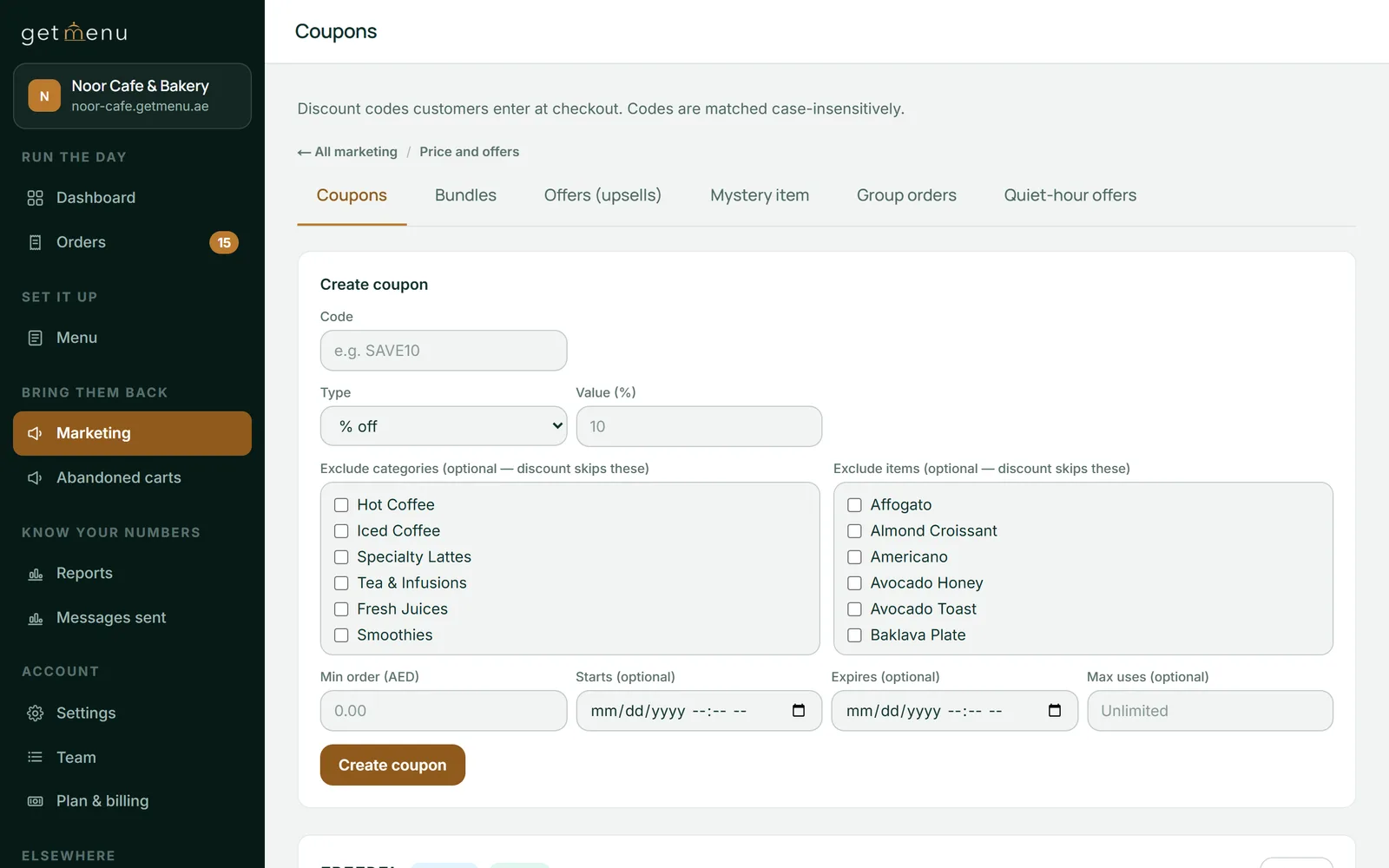
A bundle is a price, not a coupon. Coupons stay off the bundled dishes unless you tick Allow further discounts, so the same dishes are not discounted twice by mistake. Bundles and offers sit together under Marketing, in the Price and offers group, next to your coupons, so all your deals are in one place.
noor-cafe.getmenu.ae/admin
Marketing, then Price and offers: Bundles and Offers (upsells) sit in the same row of tabs as Coupons.
In the cart
Increase average order value with free delivery and spend-more treats
GetMenu's cart shows customers how close they are to something worth having. If you offer free delivery over an amount, the cart shows a bar and tells the customer how much more they need for free delivery.
You can add treats over a cart amount as well, for example a free dessert once the cart reaches one amount and a free drink at a higher one. The cart lists the treats already reached and how much more the next one needs. The customer adds a treat they have reached with one tap.
When the customer is just short, the cart can suggest one dish: the cheapest dish on your menu that closes the gap, at its normal price. A dish that has sold out is never suggested. One tap adds it, and the customer reaches free delivery or the next treat without going back to the menu.
Free delivery reachedDelivery is free on this order
Days, hours and regulars
Happy hour offers, first-order welcomes and rewards for regular customers
Every offer in GetMenu can run only on the days and hours you choose. A happy hour offer can sell iced coffee at a lower price between 3 pm and 5 pm on weekdays. When the order is placed, our server checks the day and time in your restaurant's time zone, so the offer price cannot be used at other times.
A first-order welcome gives new customers a treat on their first order. It shows on a phone or computer that has not ordered from you before. Our server also checks the customer's phone number when the order is placed, so a regular customer on a new phone does not get the welcome again.
An every-Nth-order reward does the same for regular customers, for example a free dessert on every fifth order. It counts the orders that phone number has placed with you, so the reward comes on the right order.
Complete the meal: suggestions learned from what your customers order together
GetMenu can also suggest a dish from what your own customers order together. Switch on Complete the meal, and the dish window suggests up to two dishes most often ordered with the dish the customer is looking at.
The suggestions come from your restaurant's orders over the last 90 days, once there are at least 30 of them. Two dishes must appear together in at least five orders before they count as a pair, so a single unusual order never becomes a suggestion. The list is worked out again once a day, and the Offers page shows you what your orders say right now.
A suggestion is not a deal: the customer pays the normal menu price. It comes from all your orders added together, never from one customer's history. Your own offers come first, so where you have set a pairing for a dish, the learned suggestion is not shown. You switch it on once, and it runs by itself after that.
Online menu and POS
Upselling on your online menu while the POS counter stays quick
GetMenu's offers run on your online menu, where the customer has time to look. The GetMenu POS shows no offers to the cashier, so a counter sale never stops for a question when the queue is long.
Online orders show on the same POS screen as your counter sales, and each one prints on the same kitchen ticket, with every extra the customer picked. A phone order or a WhatsApp chat order is typed in once at the POS and sent to the kitchen and the riders the same way. To give those customers the offers too, share your ordering page link in your WhatsApp replies. Customers who order for collection, and guests who scan a table's QR code, order from the same menu with the same offers.
Every offer price is checked again by our server when the order is placed. If a deal has expired, or its main dish has been removed, the customer is told before the order goes through. A price changed on the customer's phone does not count.
Pick one of the ten kinds of offer, the dishes that start it, the offer price and the limit per order. Under Show in, choose the item popup or the cart. Tick days and set hours, or leave them empty for every day.
Marketing, then Offers (upsells)
Switch on Complete the meal
Tick Show suggestions learned from my orders and save. The same card lists the pairs your orders have found so far.
Marketing, then Offers (upsells)
Make a bundle
Pick the dishes that count, how many make a bundle and the price for them together.
Marketing, then Bundles
Set free delivery
Type an amount in Free delivery over, or leave it blank for no free delivery offer.
Settings, then Ordering rules
Check your margins
Give your dishes recipes to see what each one costs you to make before you price a combo or a bundle.
Menu, then Recipes & food cost
Questions
Frequently asked questions
What kinds of upsell offers can I create?
GetMenu has ten kinds of offer. You can pair a deal with a dish or with a whole category, offer a combo upgrade, a second one at a discount, buy X get Y, a treat over a cart amount, a happy hour offer, a first-order welcome, a reward on every Nth order and a shelf of small add-ons. Bundles and Complete the meal suggestions sit beside them.
Which GetMenu plans include upselling?
Offers, bundles and Complete the meal come with the Growth and Pro plans. The free delivery bar, and the cart's suggestion of a dish that closes the gap to free delivery, work on every plan once you set a free delivery amount. To try the offers in your 15 free days, choose Growth or Pro when you sign up. The pricing page shows the plans in your own currency.
Are offers added to the cart without asking the customer?
No. An offer is only a suggestion until the customer taps it. A pairing in the dish window goes into the cart with the dish when they tap Add, and a cart deal is added when they tap it under Deals for you. A bundle only changes the price of dishes they already chose. Nothing appears in the cart that the customer did not pick.
Can I check my food cost before I price a combo?
Yes. GetMenu includes restaurant menu costing software on the Recipes & food cost page. Give each dish a recipe made from your ingredients and their costs. The page then shows what one portion costs you to make and the margin left at its menu price. Check it before you set a combo or bundle price, so you know how low you can go and still make money.
Does the GetMenu POS suggest add-ons to the cashier?
No. Offers, bundles and Complete the meal suggestions run on your online ordering page. At the counter, the cashier picks the dishes and takes the payment with no offer screens in between, so service stays quick. The extras customers pick online still reach the same POS screen and the same kitchen ticket. To give phone and WhatsApp customers the offers, send them your ordering page link.
Are the Complete the meal suggestions personal to each customer?
No. The suggestions come from all of your restaurant's orders over the last 90 days, added together, and never from one person's history. Everyone who opens the same dish sees the same suggestion. Whatever the customer taps is added at its normal menu price, because a suggestion is a shortcut to your menu, not a deal.
What is the difference between a bundle and a coupon?
A coupon is a code the customer types at checkout to get money off. A bundle needs no code: it is one price for a group of dishes, and the cart applies it by itself when it holds enough of them. By default, a coupon does not reach the dishes inside a bundle, so the two do not add up unless you tick Allow further discounts.
Will the menu offer a dish that has sold out?
No. The dish window and the cart only offer dishes that are available, and the cart never suggests a sold-out dish to close a gap. If an offered dish sells out while it sits in a cart, the checkout refuses it and names the dish, so your kitchen is never sent an offer it cannot make.
Try GetMenu free for 15 days, with no card needed. Choose Growth or Pro when you sign up, and set your first pairing, combo or bundle on your ordering page.