
Upload a photo for each dish
Open the dish, press Upload a photo and pick any picture. It is squared and made smaller for you.
Menu, then Edit on the dish
GetMenu is an online menu ordering system that answers your customers' questions on the menu itself. Each dish shows its photo, a description of what is in it, its spice level, its allergens and its choices. A dish that has run out shows Sold out. Then the customer orders on the same page.
Before they order, many customers want to know a few things about a dish: how big the large size is, whether the sauce has milk in it, or what comes with the burger. When the menu does not say, they send a WhatsApp message or call.
At a busy time, the person who answers the phone is also taking orders and talking to riders. The reply comes late, or it never comes. A customer who is still waiting for an answer after ten minutes orders from another restaurant instead.
For a customer with a food allergy, a guess is not good enough. If nobody can tell them what is in a dish, they leave it out, and sometimes they leave the whole order. Every question your team answers by hand also takes time away from the next order.
In GetMenu, every dish can have a photo. Open the dish on the Menu page, press Upload a photo and pick any picture from your phone or computer.
You do not need to crop or resize it first. The photo is cut to a square of 800 by 800 pixels and made smaller on your own device before it is saved, so each one stays under 300 KB. That way a digital menu full of photos still opens quickly on a phone.
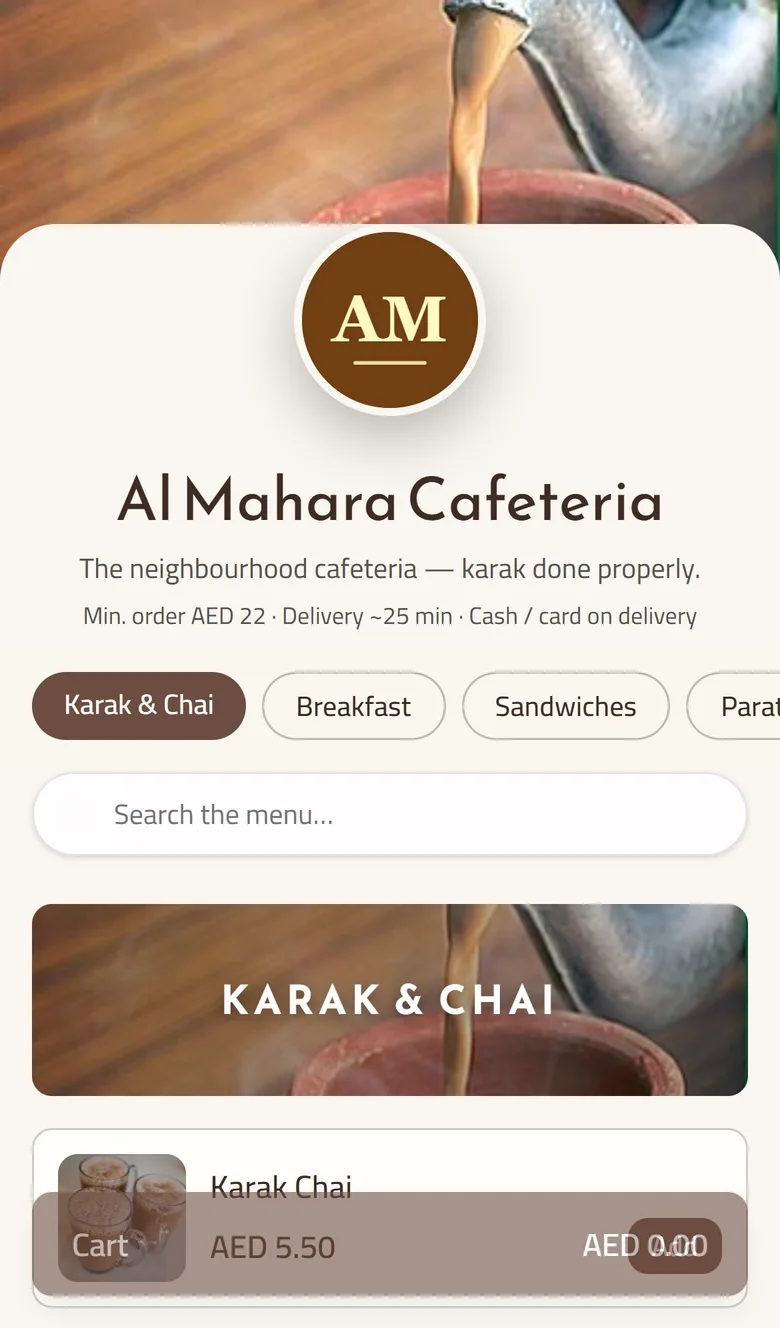
The photo shows on the dish card in nine of the twelve page layouts. If you have no good photos yet, three layouts (Bistro List, Menu Board and Poster Hero) are text menus, like a printed menu board. You can also choose how the photos look on the Theme gallery page: in the layout's own style, in full colour, or in black and white. To remove a photo, clear it and save the dish.
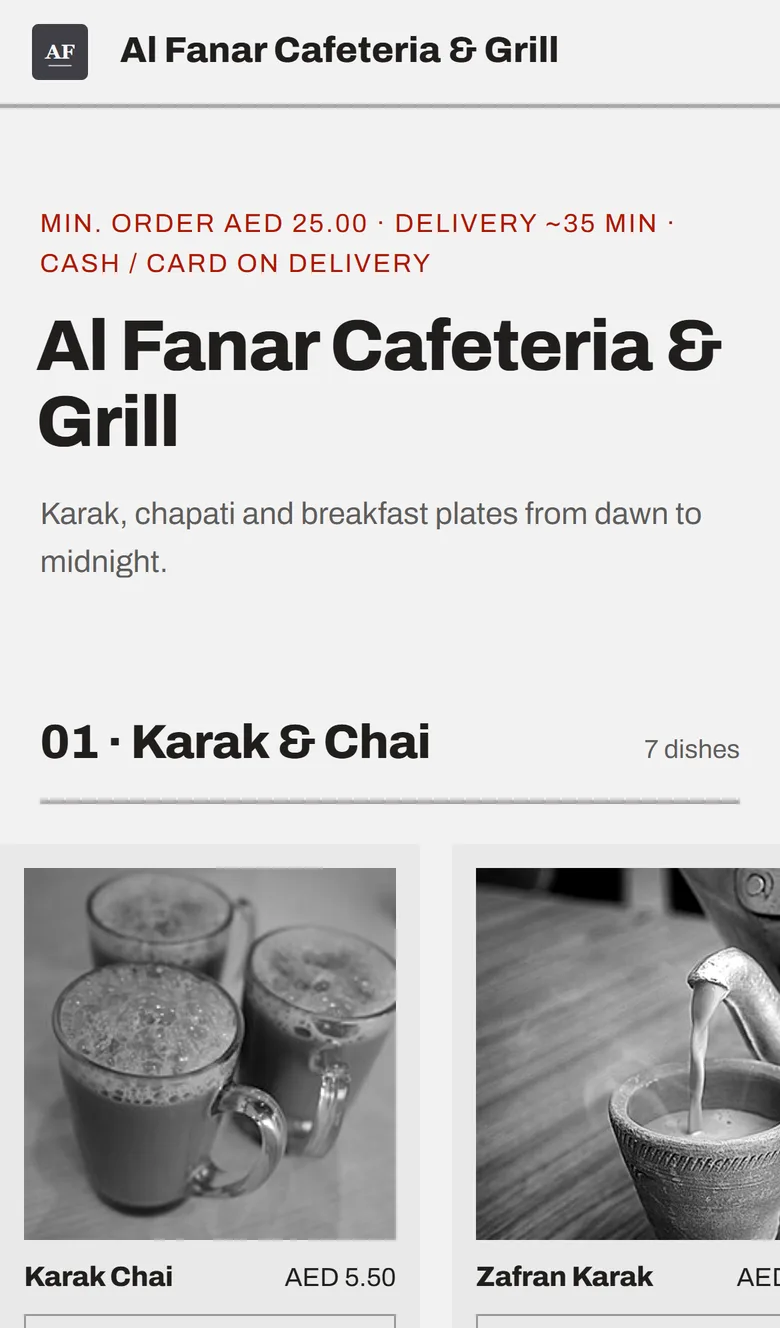
Each dish has a description and a spice level, and together they answer the questions your team hears most. In the description, write what is in the dish, the portion size, what comes with it and how it is cooked.
The spice level tells the customer how hot the dish is before they ask. You set it on the dish, and customers see it on the menu and in the dish's window.
Depending on the layout, the description shows under the dish name, in full or cut short to fit the card. When the customer taps the dish, its window opens with the whole description, so a longer answer still fits.
Three layouts (Photo Hero, Tabs and Anunzio One) also have a Search the menu box. It finds dishes by any word in the name or the description, so a customer who types "chicken" sees every dish that mentions it.
If your menu is long, fill in the Description column of the Excel template and upload the whole menu at once.
GetMenu lets you declare which of the 14 common allergens each dish contains. The customer sees the list in the dish's window, before they add the dish to the cart.
The 14 are gluten, crustaceans, eggs, fish, peanuts, soy, milk, tree nuts, celery, mustard, sesame, sulphites, lupin and molluscs. You tick what a dish contains and press Declare. If you have checked a dish and it has none of them, press Declare with nothing ticked, and the customer reads that you declare it free of all 14.
A dish that nobody has checked shows no allergen line at all. GetMenu never prints "contains nothing" for a dish that has not been checked, because missing information is not the same as no allergens.
The list is your restaurant's own statement about its food, so the person responsible for food safety in your kitchen should check it. Declarations are made on the Mystery item page under Marketing, and they are not part of the Starter plan.
What the customer reads in the dish's window
Questions about the size or the extras are answered with choices on the dish itself. In GetMenu, you add choice groups to any dish, and customers see each choice, with any extra price, when they open the dish.
Open the dish's form, go to Choices and extras and press Add a group. Name it, for example Sauce, and add Garlic and Chilli with no price, because neither costs more. Tick Must pick, and the group gets a star in the dish's window and the Add button stays off until the customer chooses. Max picks limits how many extras can be chosen, and the window shows it, for example "up to 3".
A choice that has run out is crossed out and marked Sold out, while the dish keeps selling with its other choices. Our server checks every choice again when the order is placed. The choices reach your managers' WhatsApp group with the order. With the POS add-on, every choice also prints in bold on the kitchen ticket and shows on the kitchen screen.
Customers often ask whether a dish is available today. GetMenu answers that on the menu: a dish with no stock left shows Sold out where the Add button was, and nobody can order it.
If you count the portions of a dish, every order takes the count down. When only a few are left, the dish shows a small note such as "Only 3 left", and the quantity buttons in its window stop at the number that remains. A dish you do not count has a switch on the Menu page that you set to Available or Sold out yourself.
After an online order, the next customer to open the menu sees the new count. When a dish sells out at the counter, your online menu shows it as Sold out at once. The checkout also checks the live count when each order is placed, so the last portion is only sold once and nobody has to call a customer to cancel.
Once customers have their answers, they add the dish to the cart on the same page. GetMenu takes the order from there, so nobody on your team has to type it into a chat.
At checkout, the customer gives their name and WhatsApp number and chooses delivery or collection. For delivery, they pick their building from your list, type their unit number and can share their location. They pay in cash or by card machine when the order arrives or when they collect it. Guests at a table who scan its QR code order from the same menu, with no address step.
Every price and choice is checked again on our server, so the order always matches your menu. The moment the order is placed, your managers' group gets it on WhatsApp, a delivery order goes to your riders' group too, and the customer's confirmation comes from your own WhatsApp number. With the POS add-on, the order also shows on the POS screen beside your counter sales.
Open the dish, press Upload a photo and pick any picture. It is squared and made smaller for you.
Menu, then Edit on the dish
Write what is in each dish and answer the questions customers ask most, or fill in the Description column of the Excel template.
Menu, or Menu then Bulk import (Excel)
Choose how spicy each dish is. Customers see it on the menu and in the dish's window before they order.
Menu, then Edit on the dish
Add a group such as Size or Extras. Tick Must pick when the customer has to answer, and set Max picks for extras.
Menu, then the dish's form, under Choices and extras
Tick what each dish contains and press Declare. Press Declare with nothing ticked only for a dish you checked and found free of all 14.
Marketing, then Mystery item, under Allergen declarations
Choose one of the 12 layouts, then choose whether photos follow the layout, show in full colour or show in black and white.
Theme gallery
Nothing. Until you declare a dish, its window shows no allergen line at all. GetMenu never treats missing information as no allergens, so a customer is never told a dish is free of nuts just because nobody filled in the list. Once you have checked the dish, tick what it contains and press Declare, or press Declare with nothing ticked if it has none of the 14.
Set the spice level when you edit the dish on the Menu page. Customers see it on the menu card and in the dish's window, so they know how hot the dish is before they order. If some customers like it hotter, also add a choice such as Extra spicy to the dish. Their pick reaches the kitchen with the order, and with the POS add-on it prints in bold on the kitchen ticket.
No. Customers see the allergens of each dish in its window, but the menu cannot be filtered by allergen, and there are no vegan or calorie labels. A customer who needs to avoid something can open each dish and read its list. They can also write the allergy in the notes at checkout, so your team sees it on the order.
Yes. The checkout has a box called Notes for the restaurant. What the customer writes there goes to your managers' group on the WhatsApp order ticket. With the POS add-on, a note that uses the word allergy or allergic prints in bold capitals above the dishes on the kitchen ticket and shows in a red box on the kitchen screen, so the cook sees it first.
Photos, descriptions, choices and the Sold out marks come with every plan. Allergen declarations are not part of the Starter plan. The pricing page lists what each plan includes, in your own currency. If you are on Starter, you can still write the main allergens in a dish's description, but the declared list is clearer for customers because every dish uses the same words.
No. When you upload a photo, it is cut to a square of 800 by 800 pixels and made smaller on your own device, so each one is saved at under 300 KB. That keeps a menu with many photos quick to open on a phone. You never need to resize a picture yourself before you upload it.
Write the answers your team gives most often: what is in the dish, the portion size, what comes with it and how it is cooked. The spice level has its own setting, so it needs no sentence. Keep the sentences short, because some layouts show only the start of the description on the menu card. The full text appears when the customer opens the dish.
Yes. Edit the dish on the Menu page and save it. The change shows on your ordering page straight away for every customer who opens it after that. A customer who already has the menu open sees the change when they reload the page. If you replace your whole menu with an Excel import, check your allergen declarations afterwards, because a full replace does not keep them.
Try GetMenu free for 15 days, with no card needed. Add photos, descriptions, spice levels and choices to your dishes, and see your ordering page the way your customers will.