
To the customer
Order A-214 is confirmed.
Invoice A-214: 2 × Chicken shawarma, 1 × Large fries, 1 × Karak tea. Cash on delivery. Estimated delivery about 35 minutes. Track your order with the link below.
Home/POS with online ordering
POS and online orderingGetMenu is a restaurant POS with online ordering built in. Counter sales, web orders and WhatsApp orders show on one POS screen and reach the kitchen as one ticket. The POS and your ordering page share one menu, the same prices and one stock count. From the POS, you send delivery orders to your riders on WhatsApp.
A tablet for every app means a different menu, price and stock count on each tablet. A POS system with online ordering keeps one menu, one price and one stock count for the counter and your ordering page. You edit a dish once, in your dashboard.
Many restaurants keep one tablet for each delivery app, one for their own online orders and a POS at the counter. A price changes in one place and stays the same in the others. A dish runs out in the kitchen while one of the tablets keeps selling it. At the end of the day, someone adds up the sales from every screen by hand.
With GetMenu, orders from your ordering page show on the POS screen beside the counter sales. If you connect a delivery app with your own partner account, its orders arrive on the same orders board and kitchen screen. Every order gets its number from one list, so counter, online and delivery-app orders are numbered together. Every sale counts in the same totals on your dashboard.
Counter sales, web orders and WhatsApp orders reach the kitchen as one kind of ticket. Cooks read every order the same way, in one place. Nobody watches one screen for the counter and a phone for online orders.
The ticket goes to a kitchen printer, a kitchen screen or both. Every special request, such as "no onions" or "extra spicy", is printed in bold on the kitchen ticket. Each ticket says whether the order is for delivery, collection or a table. A guest who scans a table's QR code orders on their own phone. The order joins that table on the POS floor plan, where the bill is taken.
Pair an iPad, an Android tablet or a phone as "A screen in the kitchen". Each order shows how long it has waited. It is green when it arrives, amber when it is nearly late, and red when it is late.
If you split the kitchen into stations, such as the grill and drinks, each station gets only its own dishes. The cook taps Ready when it is done.
Kitchen ticket · A-214 · Delivery
Counter, web and WhatsApp orders on one ticket
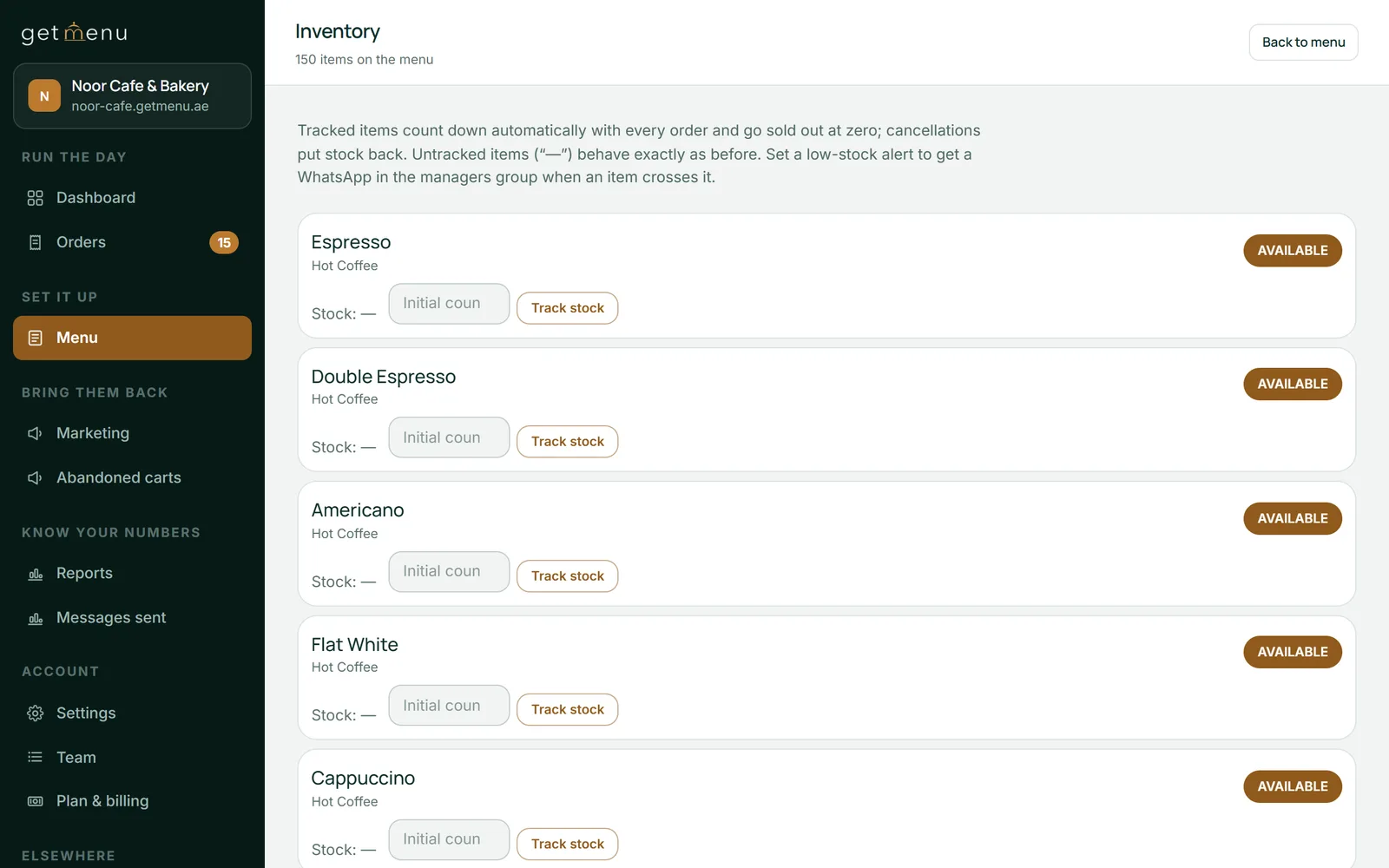
The counter and your ordering page sell from the same stock count. A portion sold at the counter is taken off the same number the online menu uses. When the number reaches zero, nobody can order that dish, at the counter or online.
You choose which dishes to count, and you can count each size or flavour on its own. Every sale lowers the count: counter sales, table orders and online orders. If two people try to order the last portion online at the same moment, only one gets it, and the other is told right away. When an online order is cancelled, its portions go back into the count, and a refund at the POS can put them back too.
The online checkout always checks the live count, so a dish that has just sold out at the counter is refused at once. The menu page shows it as sold out within a minute, with "Sold out" in place of the Add button.
Delivery orders show on the POS screen, and the cashier sends each one to a rider from there. The ticket in your riders' WhatsApp group shows the rider's name, the building, the unit number and a map link. It also says whether to collect cash or bring the card machine.
When a customer orders on your ordering page, the WhatsApp messages go out the moment the order is placed. Your managers' group gets the full ticket. The customer gets a confirmation from your own WhatsApp number, with a link to follow the order. If a customer has never messaged your number, their phone opens WhatsApp with the order already typed. They tap Send, and then the confirmation arrives.
When a customer orders by phone or in a WhatsApp chat, the cashier types the order in at the POS. The cashier then picks the building from your list and adds the unit number. The order goes to your riders the same way as an online order, with the same ticket.
Order A-214 is confirmed.
Invoice A-214: 2 × Chicken shawarma, 1 × Large fries, 1 × Karak tea. Cash on delivery. Estimated delivery about 35 minutes. Track your order with the link below.
NEW ORDER A-214
2 × Chicken shawarma (no onions, extra spicy) · 1 × Large fries · 1 × Karak tea · Tower B, unit 1204 · map link
DELIVERY A-214 · Rider: Imran
Tower B, unit 1204. Map link attached. Collect cash on delivery.
Sent from your own WhatsApp number
The GetMenu POS system is a yearly add-on to your plan, with no limit on devices. With your ordering page, it makes one POS ordering system: one menu, one customer list and one set of order numbers.
Save a card and switch on the yearly POS add-on. During your free trial you can use every POS screen and set things up first.
Settings, then Plan & billing
Add each device as a POS that sells, a screen in the kitchen or a waiter's phone, then type its six-character code into the app. Give each person a four-digit PIN.
Settings, then The POS
Turn on counting for the dishes and options that can run out, and enter how many you have.
Menu, then Inventory
Print a QR code for each table and drag the tables into your floor plan.
Settings, then Tables & QR ordering
Link your number by scanning a QR code, then pick your managers' group and your riders' group.
Settings, then WhatsApp connection & groups
Add each rider's name and phone number, so the cashier can pick the rider for a delivery order.
Settings, then Riders & dispatch groups
Yes. Web orders appear on the POS screen next to counter sales, and each one prints or shows as one kitchen ticket. The cashier then sends delivery orders to a rider on WhatsApp. A QR order from a table joins that table on the floor plan, and the bill is paid at the POS.
Yes. The POS is a yearly add-on that sits on top of a plan. The plan gives you the ordering page, the WhatsApp messages and the dashboard. The POS adds the counter, the kitchen screen and the waiters' phones, with one price for the whole restaurant however many devices you pair. Your plan price does not change when you add it.
You change it once, in your dashboard, because there is one menu. The ordering page shows the new price right away. Each POS picks it up the next time it refreshes its menu: when the app opens, or when someone taps Look again in its settings. The counter uses the same menu prices as your ordering page, so a dish has one price in both places.
The online checkout stops taking that dish at once, because it checks the live count. On the menu page it shows as sold out within a minute, and nobody has to switch it off by hand. If an online order is cancelled, its portions go back.
Your dashboard's sales totals count counter sales and online orders together. Open Reports, then Shifts and the POS. It shows what the POS took in each shift and the average counter sale next to the average online order. It also lists every Z report (the shift summary) with its cash count. You can download it as a spreadsheet.
Yes, once the cashier adds the customer's phone number to the sale. That number joins the same customer record your online orders use. You have one customer list, not two. The sale also earns the same loyalty stamp. Gift cards work in both places too: a card sold at the counter can be spent at online checkout.
A walk-in sale sends no ticket to your managers' or riders' groups, because the customer is standing at the counter. If they give their number, the cashier can send the receipt to their WhatsApp. A phone or WhatsApp order typed in for delivery goes to your riders' group like an online order. At the end of each shift, the Z report goes to your managers' group and the owner's email.
Start with 15 free days. You can use every POS screen during the trial and set up your devices and staff before you add the POS.